How to Batch Remove Background from Multiple Images at Once (2026)
You have 50 product photos for your online store, 200 employee headshots for the company website, or a folder of design assets that all need transparent backgrounds. Removing them one by one in Photoshop takes 3-5 minutes per image — that’s 2.5 to 16 hours of repetitive work. Batch background removal processes your entire folder in minutes, sometimes seconds, by leveraging AI to detect and cut out subjects automatically. Whether you need to batch remove background from product photos, batch remove background from headshots, or batch remove background from design assets, the right tool saves you hours per session.
You have 50 product photos for your online store, 200 employee headshots for the company website, or a folder of design assets that all need transparent backgrounds. Removing them one by one in Photoshop takes 3-5 minutes per image — that’s 2.5 to 16 hours of repetitive work. Batch background removal processes your entire folder in minutes, sometimes seconds, by leveraging AI to detect and cut out subjects automatically. Whether you need to batch remove background from product photos, batch remove background from headshots, or batch remove background from design assets, the right tool saves you hours per session.
This guide covers 5 methods to batch remove backgrounds, ranked by speed and ease. Each produces transparent PNGs you can use for e-commerce listings, social media posts, presentation slides, or design mockups. We’ll cover online tools, desktop software, developer APIs, and free open-source options so you can pick the right approach for your skill level and budget. Ready to get started? Try removing a background now →
Fastest method — batch remove background from multiple images →
Quick Comparison
| Method | Speed | Cost | Best For | Max Images |
|---|---|---|---|---|
| Online AI Tool | ⚡ Seconds/batch | $0–$24.90/mo | Non-technical users, quick results | 500+/month |
| Photoshop Actions | 🐢 2–5 min/batch | $22.99/mo | Designers with existing subscription | Unlimited |
| remove.bg API | ⚡ Seconds/batch | $0.03–$0.20/image | Developers, automated workflows | Unlimited |
| Canva Pro | 🐢 30 sec–2 min | $12.99/mo | Marketers, social media | 500/month |
| Python + Rembg | ⚡ 1–3 sec/image | Free (open source) | Developers, privacy-first | Unlimited |
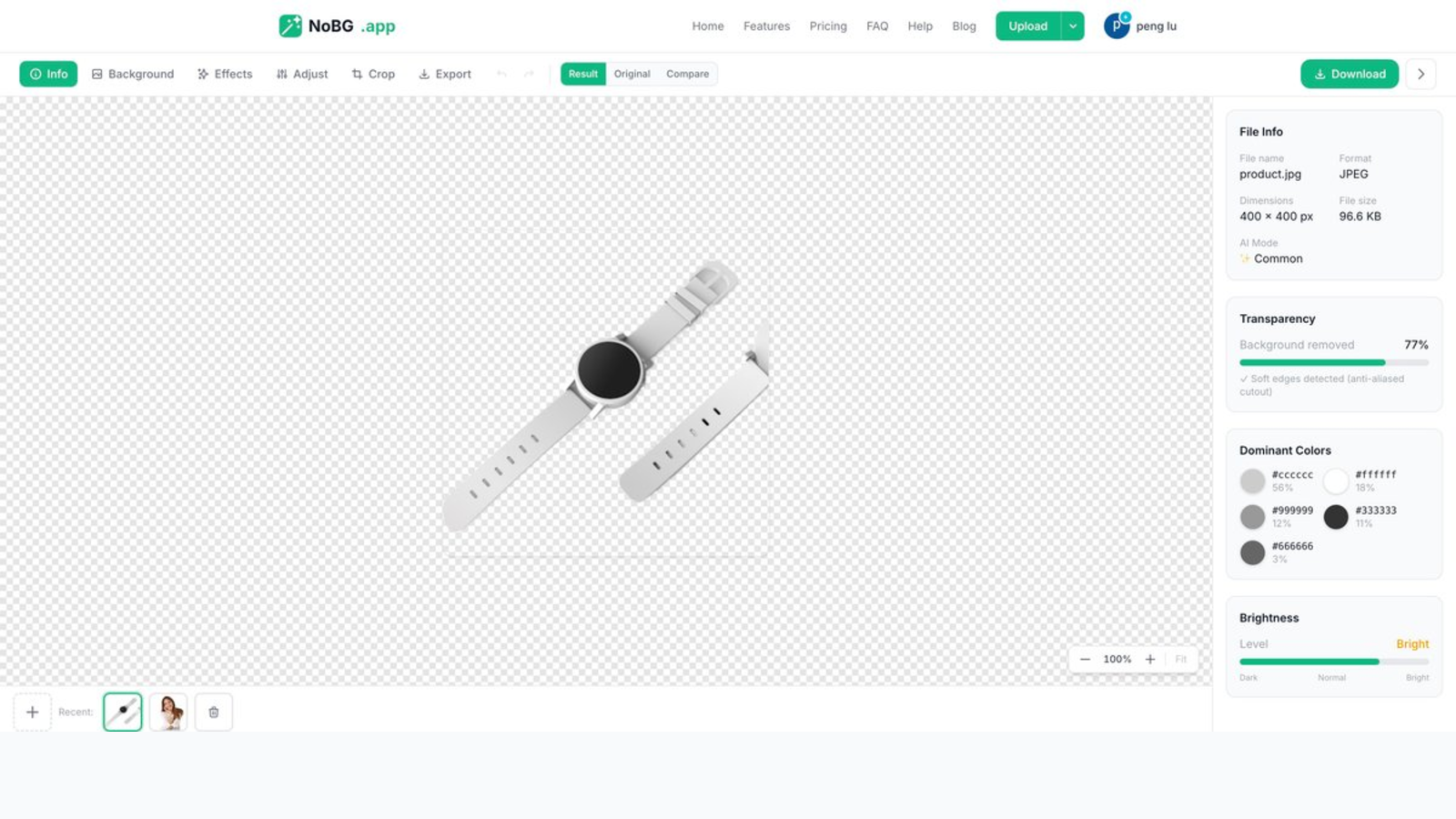
NoBG editor interface — Result tab with transparency percentage, dominant colors, file info, and Download button.
Method 1: Online AI Tool (Fastest)
The quickest way to batch remove backgrounds is an online AI tool. You upload a folder, the AI processes every image in parallel, and you download transparent PNGs.
How it works:
- Go to NoBG batch background removal
- Click “Upload Folder” or drag your image folder into the browser
- The AI detects subjects automatically — people, products, logos, animals
- Click “Remove All Backgrounds” to process the entire batch
- Download your transparent PNGs as a ZIP file
What you get: Every image at its original resolution, no downsizing, no watermarks. Output is always transparent PNG regardless of input format.
Pricing: Free users get 2 single-image removals per day. Batch processing requires a paid plan: Pro at $24.90/month handles 500 images/month, Business at $59.90/month handles 2,000/month.
Pros: No software to install, works on any device, handles mixed image types (products + people + logos in one batch)
Cons: Requires internet connection, upload limit per image is 20MB
📥 Free Download — Batch Background Removal Cheat Sheet
A 5-phase workflow for processing 100+ product images per hour — naming, formats, QA checks, and platform exports.
Method 2: Photoshop Actions (For Designers)
If you already use Photoshop, batch processing with Actions is powerful and flexible.
Setup (one time):
- Open any image in Photoshop
- Go to Window → Actions
- Click “Create New Action” and name it “Remove Background”
- Record these steps: Select Subject → Invert Selection → Delete → Deselect → Save as PNG → Close
- Stop recording
Run batch:
- Go to File → Automate → Batch
- Select your Action (“Remove Background”)
- Choose Source: Folder (pick your image folder)
- Choose Destination: Folder (pick output folder)
- Click OK and let it run
Pros: Full control over edge refinement, works offline, unlimited images
Cons: Requires Photoshop subscription ($22.99/month), setup takes 10 minutes, results depend on Photoshop’s subject detection accuracy
Method 3: remove.bg API (For Developers)
The remove.bg API lets you programmatically batch remove backgrounds from any application.
Quick setup:
import requests
import os

API_KEY = "your_api_key"
folder = "./product_photos"
output = "./transparent"

for filename in os.listdir(folder):
    filepath = os.path.join(folder, filename)
    with open(filepath, "rb") as img:
        response = requests.post(
            "https://api.remove.bg/v1.0/removebg",
            files={"image_file": img},
            data={"size": "auto"},
            headers={"X-Api-Key": API_KEY}
        )
    if response.status_code == 200:
        with open(os.path.join(output, filename), "wb") as out:
            out.write(response.content)

print(f"Processed {len(os.listdir(folder))} images")
Cost: Free tier: 50 credits/month. Paid: $0.03/image (preview quality) to $0.20/image (HD quality). Credits are pay-as-you-go.
Pros: Integrates into any workflow (Python, Node.js, cURL), fast processing, consistent results
Cons: Requires coding knowledge, API costs add up for large volumes, depends on third-party service uptime
Method 4: Canva Pro (For Marketers)
Canva Pro includes a background removal tool that works on bulk uploads through its “Magic Studio” features.
Steps:
- Open Canva and create a new design
- Go to File → Import Files → select multiple images
- Select all uploaded images
- Click “Edit Photo” → “Remove Background” on each
- Download all as transparent PNGs
Pricing: Canva Pro at $12.99/month includes background removal. Batch limits: up to 500 background removals per month.
Pros: Familiar interface for Canva users, includes design templates, good for social media content
Cons: Not as fast as dedicated tools, individual image processing (not true folder upload), limited export options
Method 5: Python + Rembg (Free, Open Source)
Rembg is a free open-source tool that uses neural networks to remove backgrounds locally on your machine.
Installation:
pip install rembgBatch processing:
rembg p input_folder/ output_folder/That single command processes every image in the folder. Or use the Python API:
from rembg import remove
from PIL import Image
import os

input_dir = "./photos"
output_dir = "./transparent"

for filename in os.listdir(input_dir):
    input_path = os.path.join(input_dir, filename)
    output_path = os.path.join(output_dir, filename.replace(".jpg", ".png"))

    img = Image.open(input_path)
    result = remove(img)
    result.save(output_path)
Pros: Completely free, runs locally (no cloud dependency), works offline, no image limits
Cons: Requires Python knowledge, quality varies by subject type, needs GPU for fast processing, no customer support
Common Use Cases for Batch Background Removal
E-commerce product photos: Marketplaces like Amazon, Shopify, and eBay require clean product images on white or transparent backgrounds. Batch background removal converts an entire product catalog in minutes instead of days. E-commerce sellers who batch remove background from hundreds of product images report saving 10+ hours per catalog update.
Corporate headshots: Company websites, LinkedIn profiles, and internal directories look professional with consistent transparent-background headshots. Batch removal standardizes an entire team’s photos at once. HR teams frequently batch remove background from employee photos for annual website refreshes.
Design asset preparation: Designers often receive brand assets, logos, and icons with solid backgrounds. Batch removal converts entire asset libraries into transparent PNGs ready for layering. Agencies batch remove background from client logo packages before delivering final brand kits.
Real estate photography: Property photos with distracting elements benefit from background removal when creating virtual staging mockups or clean listing images. Agents batch remove background from dozens of photos per property listing.
Social media content: Influencers and content creators batch-process profile photos, thumbnails, and overlay assets to maintain a consistent visual style across platforms. Content teams batch remove background from stock photos to create branded templates.
Which Method Should You Choose?
Choose Method 1 (Online AI Tool) if you want to batch remove background quickly with zero setup. Upload a folder, get transparent PNGs back. Best for e-commerce sellers, small business owners, and anyone who needs batch remove background done once in a while. Try batch remove background free →
Choose Method 2 (Photoshop) if you already pay for a Creative Cloud subscription and need pixel-perfect control over edges and refinement. Best for professional designers who work with complex subjects like hair, fur, or transparent objects.
Choose Method 3 (API) if you’re building an app or workflow that needs automated background removal as a feature. Ideal for SaaS products, marketplaces, or internal tools.
Choose Method 4 (Canva Pro) if you’re a marketer who already uses Canva for design work and wants everything in one place. Good for social media teams creating visual content at scale.
Choose Method 5 (Python + Rembg) if you’re a developer who needs a free, offline solution with no recurring costs. Best for privacy-sensitive applications or air-gapped environments.
Tips for Better Batch Results
- Use consistent lighting in your source photos — mixed lighting causes inconsistent edge detection across the batch
- Higher resolution source images produce cleaner edges. Start with at least 1000px on the longest side
- JPG input, PNG output — JPGs are smaller to upload, PNGs preserve transparency in the result
- Check a sample first — process 3-5 images at NoBG’s background remover, verify quality, then run the full batch
- Keep originals — always save your source folder separately from the transparent outputs
Frequently Asked Questions
How many images can I batch process at once?
It depends on the method. Online tools like NoBG handle 500+ images per month on paid plans. Photoshop Actions and Python scripts have no practical limit — they process as many images as your storage allows. remove.bg API is pay-per-image with no monthly cap.
Is batch background removal free?
Some options are free. Rembg (Python) is completely free and open source. Most online tools offer a limited free tier — NoBG gives 2 single removals per day for free. For true batch processing, paid plans start around $12.99/month (Canva Pro) to $24.90/month (NoBG Pro). See NoBG pricing →
What image formats are supported?
Most tools accept JPG and PNG as input. When you batch remove background, output is universally transparent PNG. Some tools like Photoshop and Rembg can also handle WebP, TIFF, and BMP. Check your tool’s documentation for specific format support.
Can I batch remove backgrounds from photos with people and products in the same folder?
Yes. Modern AI tools detect different subject types automatically — a single batch to batch remove background can contain product photos, portraits, logos, and illustrations. The AI identifies the main subject in each image and removes the surrounding background accordingly.
How long does batch processing take?
Online AI tools process most images in 1-5 seconds each. A batch of 100 images typically completes in 2-5 minutes depending on image size and server load. Local solutions like Rembg depend on your hardware — a GPU can process images faster than a CPU.
Related guides
- Remove background from car photos — batch process vehicle inventory
- Remove image background online — single-image removal walkthrough
- Make image background transparent — transparency methods for any workflow
Already using the tool? Here’s how to level up
If the NoBG editor is already your go-to background remover, the next step is moving past one-off image processing. Here are three things to try once you have the basics down:
- Switch to batch mode: Processing multiple images at once cuts your per-image overhead close to zero. The AI works the same on a single image or fifty at once.
- Set up your exports for one marketplace: Whether you sell on Amazon, Shopify, or eBay, the one-click platform export presets handle the resolution and format requirements without manual resizing.
- Try the API: If you process 500+ images a month, the API is cheaper than credits and lets you script the whole workflow into your existing pipeline.
Questions or feature requests? Drop us a line from the Help page — we read every message.