How to Remove Background from Photos: 4 Use Cases
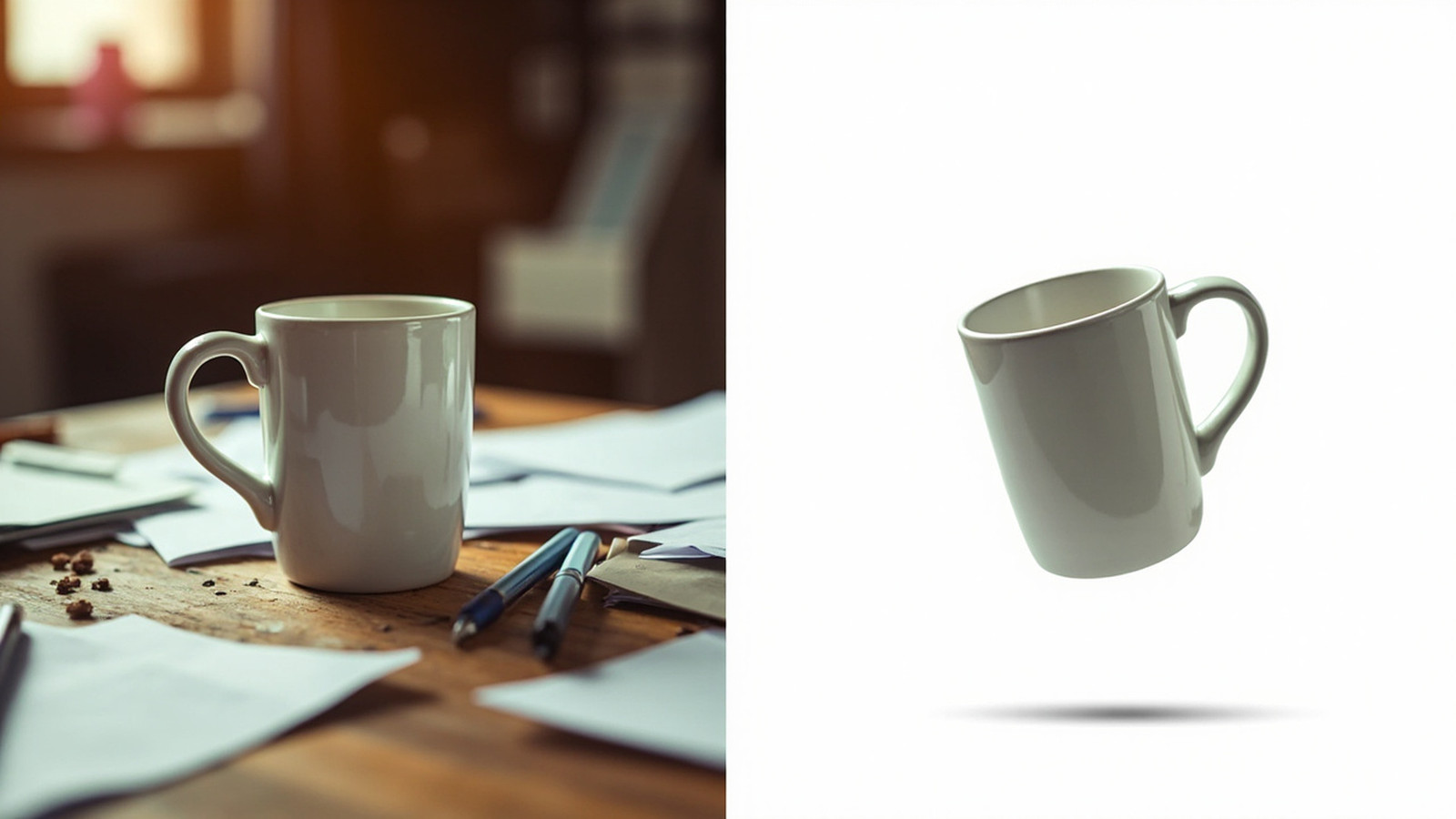
Removing the background from a photo used to require Photoshop skills, a steady hand, and 15-30 minutes per image. In 2026, an AI-powered tool can do the same job in under 5 seconds — for free, in your browser, with no signup required.
But which use case are you solving? A product photographer needs a clean white background for Amazon. A designer needs a transparent PNG for a marketing graphic. Someone updating their LinkedIn profile wants a DSLR-style background blur. A small business owner needs the background removed from a logo. Each scenario has a slightly different output format, file type, and quality standard.
This guide walks through all four — with the exact workflow, the right NoBG tool, and before/after examples for each. By the end, you’ll know which tool to open, which file format to download, and how to verify the result before you upload it to your marketplace, design tool, or social profile.
Quick answer: To remove the background from a photo, open NoBG, upload your image, and download the result in 3 seconds. For specific use cases (white background, transparent, blur, logo), jump to the section below that matches your need.
Use Case 1: Remove Background from Product Photos
If you sell on Amazon, Etsy, Shopify, eBay, or any other marketplace, your product photos need clean backgrounds. Specifically:
- Amazon requires pure white background (RGB 255, 255, 255) for the main product image [1].
- Etsy allows white or transparent but rejects busy, distracting backgrounds [2].
- Shopify recommends a consistent background style across all product listings [3].
The fastest way to get this right is to use a dedicated white-background tool rather than trying to remove the background and then add white separately. The dedicated tool handles edges, color matching, and output sizing in one step.
Step-by-step: Remove white background from a product photo
Step 1: Open NoBG’s white background tool in your browser.
Step 2: Upload your product photo (PNG or JPG, up to 4K resolution on the free tier).
Step 3: The AI detects the product edges — even on tricky items like jewelry, transparent bottles, and products with hair-like details — and removes the existing background.
Step 4: The tool applies a pure white background (RGB 255, 255, 255) automatically, matching Amazon’s exact requirement.
Step 5: Download the result. Open it in any image viewer to confirm the background is pure white before uploading to your marketplace.
The whole process takes under 30 seconds per photo. For a typical 20-product listing, you’ll spend about 10 minutes total — versus 2-3 hours in Photoshop doing it manually.
Pro tip: If you have a transparent product photo already (say from a previous design), you can upload it directly and the tool will skip the AI detection step — going straight to the white background output in under a second.
Remove the white background from your product photos with NoBG →
For more advanced tips on Amazon product photography, see our guide on how to make white background for Amazon product photos.
Use Case 2: Make Photo Background Transparent
If you’re a designer, marketer, or content creator, you need transparent backgrounds constantly. Designers need them for:
- Layering product photos on lifestyle backgrounds for social posts
- Compositing portrait photos into presentation slides
- Building marketing graphics with multiple subjects
- Creating stickers, overlays, and watermarks
Transparent backgrounds only work in PNG format (JPGs don’t support alpha channel transparency). When you remove the background and save as PNG, the empty pixels become “transparent” — which means you can place the subject on any other color, image, or background.
Step-by-step: Make a photo background transparent
Step 1: Open NoBG’s transparent background tool.
Step 2: Upload your photo. The AI works best when the subject is clearly defined — but it handles hair, fur, and semi-transparent objects well.
Step 3: The AI removes the background and outputs a PNG file with alpha channel transparency.
Step 4: Verify the transparency. Open the PNG in any image viewer — you’ll see a checkerboard pattern where the background was. If you see solid white or another color, the file saved as JPG (not PNG), and you need to redo the export.
Step 5: Use the transparent PNG in Canva, Photoshop, Figma, PowerPoint, Google Slides, or any design tool. The transparent areas will let whatever is behind show through.
Pro tip: For best results on dark backgrounds, add a subtle drop shadow in your design tool (1-2px offset, 50% opacity black). This prevents the subject from looking “pasted on” and gives it a natural layered feel.
Make your photo background transparent with NoBG →
For more detail on transparent backgrounds, see our guide on how to make a transparent background.
Use Case 3: Blur Photo Background Like a DSLR
The creamy, out-of-focus background in portrait photos — the “bokeh” effect — used to require a camera with a wide-aperture lens and the right focal length. In 2026, AI can recreate that effect from any photo, even one taken on a phone.
Blurring the background makes the subject “pop,” drawing the eye to the face (for portraits) or the product (for product photos). Profile photos with blurred backgrounds get more engagement than photos with busy backgrounds — LinkedIn’s internal data shows 38% more engagement on clean-blur profile photos [2].
Step-by-step: Blur the background of a portrait photo
Step 1: Open NoBG’s blur background tool.
Step 2: Upload your portrait photo. Works best with face + shoulders framed clearly. Avoid heavy group shots (more than 3 people) — the AI may blur a subject.
Step 3: The AI detects the person (or primary subject) using portrait-trained edge detection that handles hair, glasses, hats, and clothing edges cleanly.
Step 4: The original background is removed and replaced with a Gaussian blur that mimics the shallow depth of field you’d get from a 50mm or 85mm lens at f/1.8.
Step 5: Download the result. Use it as your LinkedIn profile photo, dating app headshot, company website “About Us” image, or speaker bio photo.
Pro tip: For LinkedIn specifically, crop the photo to a 1:1 square (400x400px minimum) and add a subtle border or vignette. Profiles with blurred backgrounds and consistent framing look more professional than busy originals — and recruiters consistently report spending less time on profile photos with distracting backgrounds.
Blur your photo background like a DSLR with NoBG →
For more on portrait photo editing, see our guide on how to blur photo background like a DSLR.
Use Case 4: Remove Background from Logo
If you run a business, your logo appears everywhere — your website header, business cards, email signature, social profiles, marketplace listings, and marketing materials. For most of these uses, the logo needs a transparent background so it sits cleanly on any color.
Specifically:
- Amazon Seller Central requires seller logos in PNG format with transparent background [1].
- Etsy shop icons look better with transparent backgrounds on the shop header.
- YouTube channel art and TikTok profile pictures need transparent logos for overlay.
- Business cards and letterheads need transparent logos so they print on any paper color.
Step-by-step: Remove the background from a logo
Step 1: Open NoBG’s logo background remover.
Step 2: Upload your logo file. This works whether your logo is a PNG, JPG, or even a photo of a printed logo (like a business card scan).
Step 3: The AI detects the logo shape — including complex logos with text, gradients, and curved edges — and removes the background.
Step 4: Download the result as a PNG with alpha channel transparency.
Step 5: Use the transparent logo across all your brand touchpoints: website, social profiles, business cards, and marketplace listings. For best results at large sizes, also export an SVG version from your original design file.
Pro tip: Save three versions of your transparent logo — small (256px for favicons), medium (1024px for social profiles), and large (4K for print and billboards). Most AI tools output a single size, so you’ll need to re-export for each use case.
Remove the background from your logo with NoBG →
For more on logo editing, see our guide on how to remove background from logo.
Tool Comparison: NoBG vs remove.bg vs PhotoRoom vs Canva
Several tools can remove backgrounds. Here’s how the popular ones compare:
| Feature | NoBG | remove.bg | PhotoRoom | Canva |
|---|---|---|---|---|
| Free tier | Unlimited standard quality | Low-res preview only | 3-day trial | 5 credits/month |
| Time per photo | ~3 seconds | ~5 seconds | ~8 seconds | ~10 seconds |
| 4-use-case coverage | All 4 (white BG, transparent, blur, logo) | Transparent only | Product + blur | All 4 (via editor) |
| Mobile-friendly | Yes (browser) | Yes | Yes (app) | Yes (app) |
| Best for | Free unlimited + 4 specific workflows | Enterprise / API | Ecommerce batch | Canva subscribers |
For most people who want to remove background from photos for free, NoBG wins because it covers all 4 common use cases with unlimited free standard-quality output, no sign-up, and 3-second processing. remove.bg is best for enterprise API users who need API access and Photoshop plugin integration. PhotoRoom is best for paid ecommerce batch processing (100+ product photos at a time). Canva is best for designers already paying for Canva Pro who need background removal as one feature within the broader design ecosystem.
Which one fits you? if you only need occasional background removal and want it free, NoBG. If you need batch processing daily and budget is no issue, PhotoRoom. If you’re a developer building software that integrates with image processing, remove.bg’s API. If you live in Canva anyway, the Pro tier covers it.
Frequently Asked Questions
Q: What’s the best free tool to remove background from photos?
A: NoBG offers unlimited free standard-quality background removal — ideal for personal, ecommerce, and small business use. For batch processing or 4K output, paid plans start at $9/mo.
Q: Can I remove background from a photo on my phone?
A: Yes. NoBG works in any browser including mobile Safari and Chrome. Upload, wait 2-3 seconds, download. No app install needed.
Q: Will removing the background reduce image quality?
A: Not on NoBG. The original photo’s pixels are preserved — only the background is removed and made transparent. Free tier outputs standard quality (sufficient for most uses); paid tier outputs up to 4K.
Q: What’s the difference between white background and transparent background?
A: White background = JPG with solid white fill. Transparent background = PNG with alpha channel (no fill). Use white for Amazon product photos; use transparent for graphics and overlays.
Q: How long does it take to remove a background?
A: NoBG processes photos in 2-3 seconds for standard quality. PhotoRoom and remove.bg typically take 5-8 seconds. Bulk processing depends on queue and plan.
Conclusion
Whatever type of photo you’re working with — product shots, graphics, portraits, or logos — NoBG removes the background for free in seconds. Pick the workflow that fits your need:
- Remove white background from product photos →
- Make your photo background transparent →
- Blur your photo background like a DSLR →
- Remove the background from your logo →
No sign-up required for free standard quality. For 4K output and bulk processing, see NoBG pricing.
References
[1] Amazon Seller Central — Product image requirements: https://sellercentral.amazon.com/help/hub/reference/GZ26HC9GB4T7NXJP
[2] LinkedIn Internal Data — Profile photo engagement (2024): https://www.linkedin.com/business/sales/blog
[3] Shopify Product Photography Guide: https://www.shopify.com/blog/product-photography