How to Make Image Background Transparent (2026 Guide)
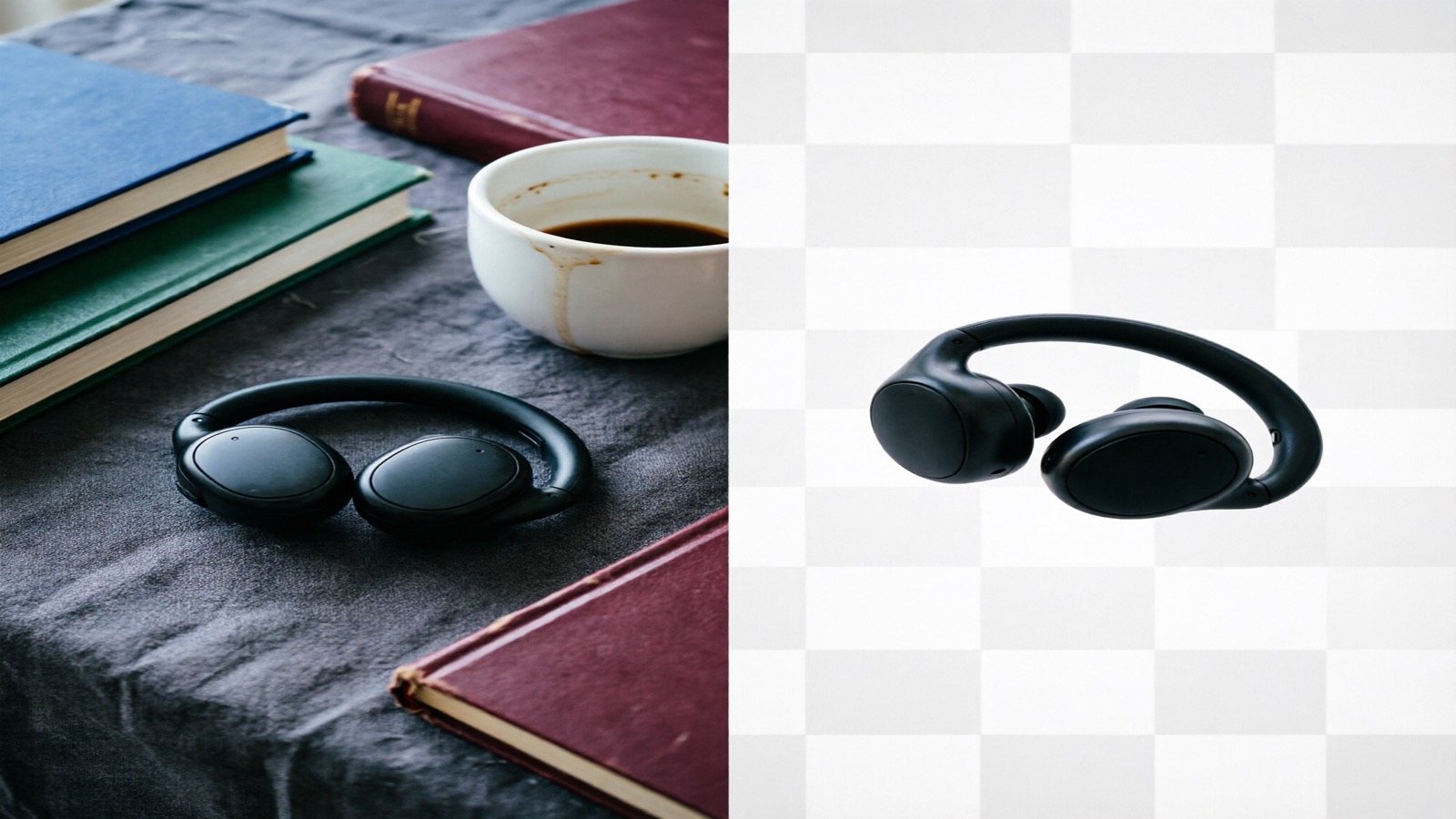
A transparent background is the single most requested image edit across e-commerce, social media, and design. Product photos on Amazon need clean white or transparent backgrounds to meet marketplace requirements. LinkedIn headshots look more professional without a distracting backdrop. Logos need transparency to work on any color surface. If you have been searching for how to make image background transparent, the good news is that AI tools now handle this in seconds — no Photoshop skills required.
This guide covers 5 methods ranked by speed, from a 3-second online AI tool to free desktop software. Each produces transparent PNGs you can use immediately. Ready to try? Make a background transparent now →
Quick Comparison: 5 Methods
| Method | Speed | Cost | Best For | Accuracy |
|---|---|---|---|---|
| NoBG | ⚡ 3 seconds | Free–$24.90/mo | Everyone, best accuracy | ⭐⭐⭐⭐⭐ |
| remove.bg | ⚡ 5 seconds | Free–$9/mo | Simple one-off edits | ⭐⭐⭐⭐ |
| Canva | 🐢 30 seconds | Free–$12.99/mo | Social media creators | ⭐⭐⭐⭐ |
| Photoshop | 🐢 2–5 minutes | $22.99/mo | Professional designers | ⭐⭐⭐⭐⭐ |
| GIMP | 🐢 1–3 minutes | Free | Budget-conscious users | ⭐⭐⭐ |
Method 1: Online AI Tool — NoBG (Fastest)
Try NoBG free — upload any image →
NoBG is an online AI background remover that processes images in about 3 seconds. It detects subjects automatically — people, products, logos, animals, vehicles — and outputs a transparent PNG at the original resolution.
How to Use NoBG
- Go to nobg.app/edit
- Upload your image by clicking the upload area or dragging a file from your desktop
- The AI detects the subject and removes the background automatically — no clicking, no selection tools
- Preview the transparent result in the editor. Use the brush tool to erase leftover fragments or restore parts of the subject
- Download as transparent PNG
The entire process takes under 10 seconds for most images. There is no account required for the free tier.
When to Use NoBG
- Product photos: Upload directly from your camera or phone. The AI handles edges, shadows, and semi-transparent objects like glass bottles
- Profile pictures: Upload a selfie, get a clean transparent or white background headshot for LinkedIn, company directories, or ID photos
- Logos: Remove colored or patterned backgrounds from logo files to get a clean transparent version for overlays
- E-commerce: Amazon, Shopify, and eBay all accept or prefer transparent PNG product images
Pricing
Free users get 2 single-image removals per day. For regular use, Pro at $24.90/month includes 500 images/month plus batch processing and HD output. Business at $59.90/month handles 2,000 images/month with API access for automated workflows.
Method 2: remove.bg
remove.bg is one of the oldest dedicated background removal tools. It is fast and simple, though the free tier has noticeable limitations.
How to Use remove.bg
- Go to remove.bg
- Upload or paste an image URL
- The AI processes the image and displays the transparent result
- Click “Download” to save as PNG
Pros and Cons
The AI accuracy is good for simple subjects like people and solid-color backgrounds. However, complex edges (hair, fur, fine details) are less precise than NoBG. The free tier caps download resolution at 0.25 megapixels and adds a remove.bg watermark. The paid tier at $9/month unlocks full resolution.
Verdict: Solid for quick edits, but NoBG offers better free-tier output quality and no watermarks.
Method 3: Canva
If you already use Canva for social media graphics or presentations, its built-in background remover is convenient.
Steps
- Open Canva and create a new design or open an existing one
- Upload your image to the canvas
- Click the image, then click “Edit Photo” in the toolbar
- Select “Background Remover” under the “Edit” tab
- Wait for Canva to process — typically 10–30 seconds
- Download the design as PNG (check “Transparent background” in download settings)
Best For
Canva’s background remover works well for social media creators who already have a subscription. The $12.99/month Pro plan unlocks the feature. However, accuracy on complex edges (hair, transparent objects) is lower than dedicated AI tools. Batch processing is limited to 500 images/month.
Method 4: Photoshop (Professional Control)
Photoshop gives you pixel-level control over the background removal process, making it ideal for complex images where AI tools might leave artifacts.
Steps
- Open your image in Photoshop
- Go to Select → Subject — Photoshop’s AI detects the main subject automatically
- Refine the selection using Select → Modify → Expand (1–2 pixels) to include fine edge details
- Go to Select → Modify → Feather (1 pixel) for smoother edges
- Press Ctrl+Shift+I (or Cmd+Shift+I on Mac) to invert the selection
- Press Delete to remove the background
- Go to File → Export → Export As… and select PNG with transparency enabled
Best For
Professional designers who need precise control over edge quality, or images with complex elements like wispy hair, lace, or semi-transparent glass. The main downside is the $22.99/month subscription and the 2–5 minute processing time per image. For batch work, Photoshop Actions can automate the process.
Method 5: GIMP (Free Desktop Alternative)
GIMP is a free, open-source image editor that handles transparency well. It requires more manual work than AI tools but costs nothing.
Steps
- Open your image in GIMP
- Add an alpha channel: Layer → Transparency → Add Alpha Channel (required for PNG transparency)
- Use Tools → Selection Tools → Fuzzy Select (magic wand) and click the background area
- Adjust the threshold slider if the selection is too large or too small
- Press Delete to remove the selected background
- Use Tools → Selection Tools → Eraser to clean up remaining fragments around edges
- Export as PNG: File → Export As…, select PNG format, ensure “Save color values from transparent pixels” is unchecked
Best For
Users who want free software and do not mind a steeper learning curve. Accuracy depends on contrast between subject and background — low-contrast images will need manual refinement with the eraser tool. Processing takes 1–3 minutes per image depending on complexity.
File Format Guide: PNG vs JPEG vs WebP
Why PNG for Transparent Backgrounds
PNG is the only widely supported format that preserves the alpha channel (transparency). When you save a transparent image as JPEG, the application fills the transparent areas with a solid color — usually white. This is why your transparent PNG sometimes appears with a white background when opened in certain viewers.
Format Comparison
| Format | Transparency | File Size | Best Use |
|---|---|---|---|
| PNG | ✅ Full alpha | Large | Transparent backgrounds, logos |
| JPEG | ❌ No alpha | Small | Opaque photos, web images |
| WebP | ✅ Full alpha | Small-medium | Modern web, supports both lossy and lossless |
Recommendation: Always export transparent images as PNG. For web use where file size matters, WebP with transparency is a good alternative — it produces files 25–35% smaller than PNG at similar quality.
How to Check Transparency
Open your PNG in any image viewer or browser. If you see a checkered pattern behind the subject, the transparency is preserved. A solid white or colored background means the transparency was lost during export.
Frequently Asked Questions
Can I make a background transparent on my phone?
Yes. NoBG works in mobile browsers — go to nobg.app/edit on your phone, upload from your camera roll, and download the transparent PNG directly. The AI works the same way on mobile as on desktop.
Is there a free way to make image background transparent?
Yes. NoBG gives you 2 free background removals per day with no account needed. GIMP is completely free desktop software that produces transparent PNGs, though it requires manual selection and more time per image.
Why does my transparent background look white when I open it?
The PNG file is correct — it still has transparency. Some applications (preview apps, messaging tools, and older image viewers) display transparent areas as white because they do not support alpha channels. Upload the file to a browser or image editor to verify the transparency is intact.
How do I make a white background transparent?
Upload the image to NoBG — the AI detects solid white backgrounds and removes them automatically. This works even when the subject has shadows or the white background is not perfectly uniform.
Can I batch make backgrounds transparent?
Yes. NoBG Pro and Business plans include batch background removal that processes an entire folder of images at once. Upload 50, 100, or 500 images and download transparent PNGs in a single ZIP file.
Related guides
- Make a PNG with transparent background — step-by-step PNG export guide
- Get a transparent background online — fastest no-signup method
- Make a signature transparent — prepare scanned signatures for documents