How to Remove Background from Headshot Online (Free)
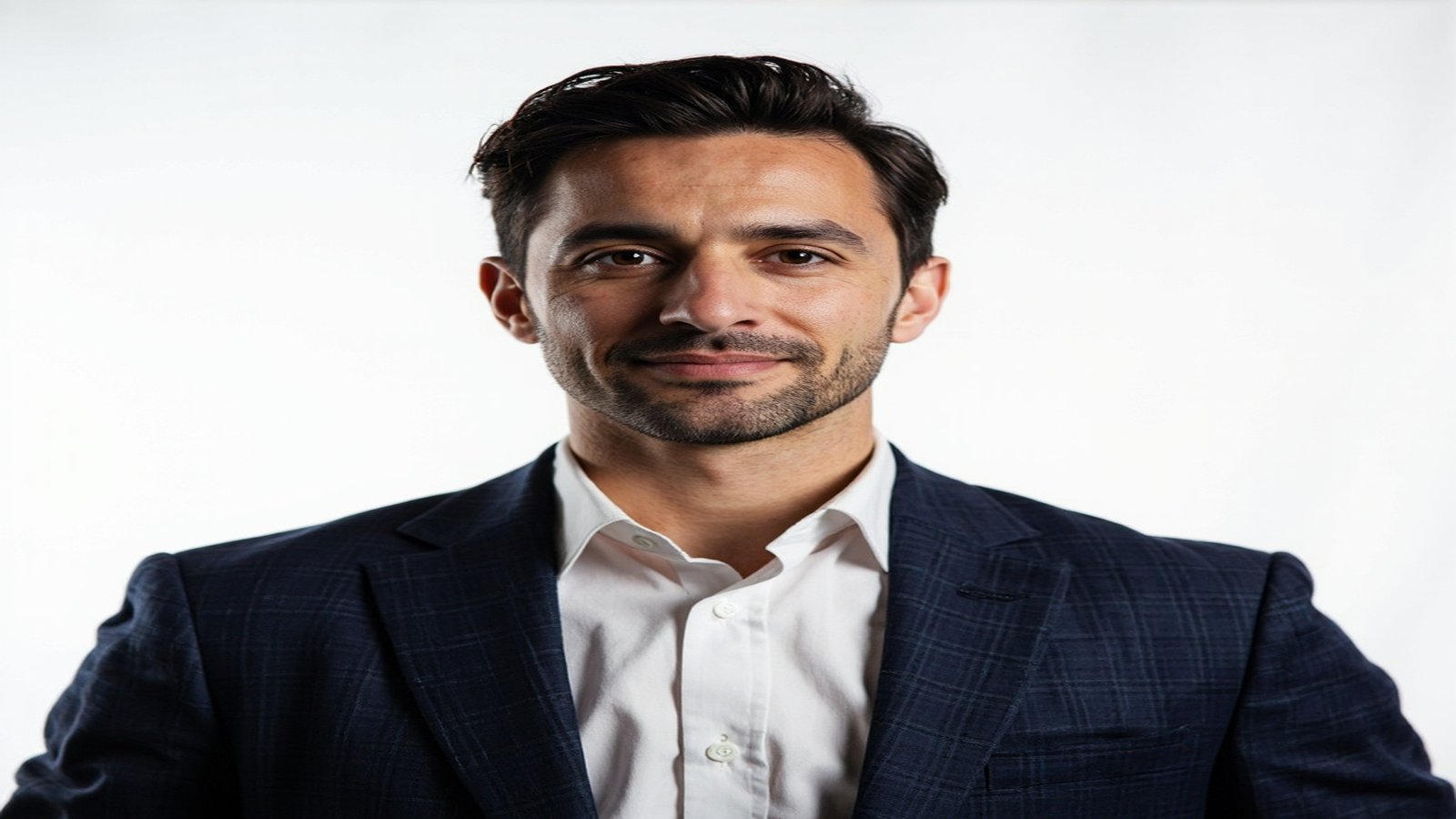
Your headshot is the first thing recruiters, clients, and colleagues see. A cluttered background behind your face looks unprofessional — a clean, neutral backdrop makes you look polished and competent. The problem is, not everyone has access to a photography studio or a seamless white wall.
AI background removal tools solve this in under 3 seconds. Upload any headshot — whether it was taken at your desk, in a coffee shop, or in your living room — and the AI separates you from the background. No Photoshop skills needed. Learning how to remove background from headshot photos is one of the fastest ways to upgrade your professional image for LinkedIn, company websites, resumes, and portfolios.
Why Your Headshot Background Matters
LinkedIn profiles with professional photos receive 21× more profile views and 36× more messages compared to profiles without a photo. But it’s not just about having a photo — the background matters.
A messy bookshelf, a visible window, or a crowded office behind you distracts from your face. Hiring managers form a first impression in under 100 milliseconds. A clean background keeps the focus where it belongs: on you.
Common scenarios where you need a clean headshot background:
- LinkedIn profile photo — white or light gray is the standard
- Company “About Us” page — all team members typically use the same background color
- Resume or CV — a small, clean headshot looks more professional than a cropped vacation photo
- Acting or modeling portfolio — neutral gray or white backgrounds are industry standard
- Conference speaker bio — event organizers often request headshots on a specific background
How to Remove a Headshot Background in 3 Steps
The fastest way to remove background from headshot photos is with an online AI background remover. Here’s how it works:
Step 1: Upload your headshot
Go to NoBG and drag your photo onto the page. JPG, PNG, and WebP formats all work. No account is required for basic use. For the best results, use the highest-resolution version of your photo — ideally 800 pixels wide or larger.
Step 2: AI processes automatically
The AI detects you — your face, hair, body, and clothing — and separates you from everything behind it. Processing takes 2–3 seconds for most headshots. The AI works with different hair types, skin tones, and clothing styles. No manual selection or brushing needed.
If the result isn’t clean on the first try, the issue is usually the original photo. See the tips below for how to improve results.
Step 3: Download or customize
Download your headshot as a transparent PNG. Or replace the old background with a new one — white, gray, navy blue, or any custom color. Some tools also let you upload a branded background image with your company logo.
Remove your headshot background now — free, no signup →
Best Background Colors for Professional Headshots
After you remove background from headshot images, you’ll need to choose a replacement. Here are the most common options and when to use each:
White background
The most universal choice. White works for LinkedIn, company directories, and most professional platforms. It provides maximum contrast with any subject and looks clean on both light and dark website themes.
Light gray background
Softer than pure white, gray reduces harsh contrast — especially helpful if you have light hair or are wearing white clothing. Popular for modern tech company team pages and startup websites.
Navy blue or dark background
Conveys authority and trust. Popular for executive headshots, law firms, and financial services. Works best when you’re wearing light-colored clothing that contrasts against the dark backdrop.
Branded or custom background
Some companies place team headshots on a branded background — a subtle gradient, an office photo, or a color that matches the brand palette. This requires a transparent PNG headshot plus a design tool to overlay it. For consistency, all team members should use the same background style and crop ratio.
How to Get the Best Headshot Background Removal
AI tools are fast, but the quality of the result depends on your original photo. When you remove background from headshot photos, follow these guidelines for the cleanest output:
Photo quality tips
- Use high-resolution images. Photos under 400 pixels produce jagged edges because there aren’t enough pixels for the AI to trace fine details like hair strands.
- Even, diffused lighting. Avoid harsh shadows on your face or strong backlighting that turns you into a silhouette. Natural window light or a ring light positioned in front of you works best.
- Separate yourself from the background. Stand at least 3 feet in front of any wall or objects behind you. The AI needs clear visual separation between you and your surroundings.
- Wear clothing that contrasts. If your background is light, wear dark clothing. If your background is dark, wear light clothing. Contrast helps the AI distinguish you from the background.
What to avoid
- Group photos — the AI may select the wrong person or merge multiple subjects
- Heavily compressed images — screenshots, WhatsApp forwards, or low-quality JPEGs lose edge detail
- Busy backgrounds — patterned wallpaper, bookshelves, or windows directly behind your head confuse the AI
- Extreme backlighting — standing with a bright window behind you creates a silhouette effect
If your original photo has any of these issues and you can’t retake it, try cropping closer to your face and shoulders before uploading. More pixels on your face means better AI results.
Headshot Requirements by Platform
Each platform has different specifications. When you remove background from headshot photos, here’s what to aim for:
- Recommended size: 400×400 pixels (displays as a circle)
- Background: white or light gray
- Crop: chest up, face centered
- Your face should fill 60–70% of the frame
Company team pages
- Background: consistent color across all team members (usually white or branded)
- Same crop ratio for everyone — typically 1:1 or 3:4
- Spacing and alignment should match between photos
Resume or CV
- Usually small — 1×1 inch or 2×2 inch on paper
- White background
- Professional, approachable expression
- Neutral clothing
Acting or modeling portfolio
- High resolution for print (300 DPI at final print size)
- Neutral gray or seamless white
- Full head-to-shoulders or head-to-waist depending on the casting requirement
For detailed guidance on general background removal techniques, see our complete guide on how to remove background from image. For professional profile photos, try the profile picture background tool.
Tools for Headshot Background Removal
Several AI tools can remove background from headshot photos quickly and accurately. Here’s how the main options compare:
NoBG
Free for individual images, no signup required. Processes headshots in 2–3 seconds with clean edge detection. Supports background replacement (white, gray, custom colors) and batch processing for company team photos. Works in any browser, including mobile.
remove.bg
One of the earliest AI background removers. Good quality on headshots, free tier limited to low-resolution downloads. API available for developer integration. Paid plans start at a higher price point than most alternatives.
Canva
Requires a Canva account. Background removal is part of a broader design toolkit — useful if you need to add text overlays, logos, or design elements after removing the background. More steps involved: upload → Effects → Background Remover → apply.
Adobe Express
Solid quality, slow processing compared to specialized tools. Part of the Adobe ecosystem — useful if you’re already using Creative Cloud apps. Requires an Adobe account.
Photoroom
Mobile-first approach with template backgrounds included. Good for social media headshots where you want a stylized result rather than a clean professional look. Batch processing available on paid plans.
For most professional headshots, a specialized background removal tool like NoBG is faster and produces cleaner results than general-purpose design tools. If you only need background removal, there’s no reason to go through a multi-step design workflow.
Frequently Asked Questions
Can I remove the background from a selfie?
Yes. AI background removal works with any photo where you’re clearly visible. For best results, use a selfie with good lighting and a plain or contrasting background. The closer your face is to the camera and the more even the lighting, the cleaner the edge detection will be.
What if the AI leaves artifacts around my hair?
Re-upload the photo at its original, highest resolution. Fine hair details require more pixel data to process accurately. If problems persist, try using a photo taken against a plain white or light-colored wall — maximum contrast between your hair and the background gives the AI the best chance of producing clean edges.
Can I add a new background color after removal?
Yes. After removing the original background, you can add white, gray, blue, or any custom color. Many tools also let you upload a custom background image — a branded office scene, a gradient, or a textured backdrop. For team pages, this is the most common workflow: remove backgrounds, then apply the same branded color to all headshots.
Is it free to remove headshot backgrounds?
Yes. NoBG offers free background removal for individual headshots — no signup required. You can remove background from headshot photos in seconds and download a clean PNG. If you need to process an entire team page (10–50 headshots), check the Pro plan for batch processing at a lower per-image cost.
What resolution should my headshot be?
LinkedIn accepts photos from 400×400 upward, but 1200×1200 is recommended for sharp display on retina screens. For print use (business cards, brochures), aim for 300 DPI at the final print size. For company websites, match your CMS requirements — typically 400–600 pixels wide.
For more on replacing backgrounds after removal, see our guide on how to change image background online. For a full comparison of available tools, check our best free background removers roundup.
Related guides
- Blur photo background like a DSLR — soft-focus alternatives to removal
- Passport photo background color — meet official ID requirements
- Change image background online — replace backgrounds after removal