Remove Background from Car Photos for Listings 2026
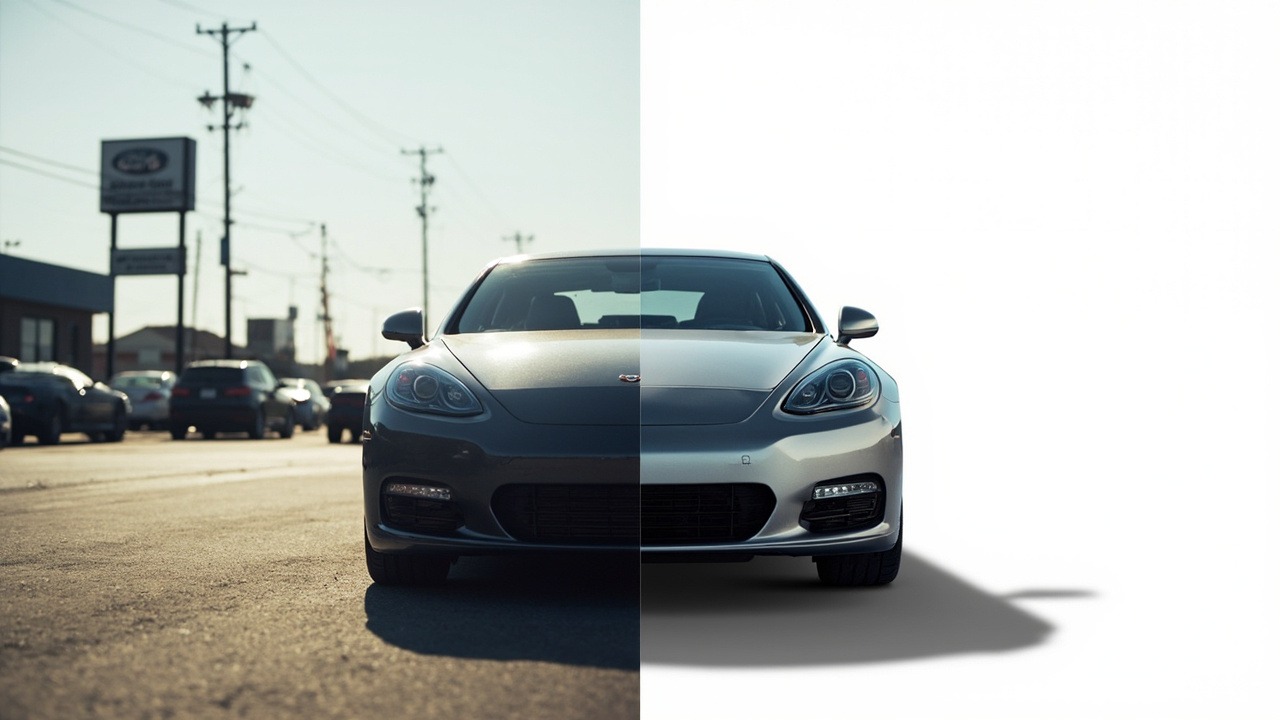
More than 50,000 used cars land on Autotrader, CarGurus, and Cars.com every week. The dealers whose listings convert share one thing in common — clean, distraction-free photos. Most sellers don’t have a photo studio, so they’re shooting cars in busy lots, alleyways, or driveways where the background fights for attention with the vehicle. Removing that background after the shoot is the single fastest way to make a listing photo look professional without booking studio time.
This guide covers 6 methods to remove the background from car photos, ranked by speed and cost. Whether you’re a dealer processing 50 vehicles a week, a private seller listing one car, or a marketing team building social campaigns, there’s an approach here that’ll fit your workflow. Each method produces transparent PNGs or white-background JPEGs you can upload straight to listing platforms. Try removing a background now →
Fastest method — NoBG AI background removal for car photos →
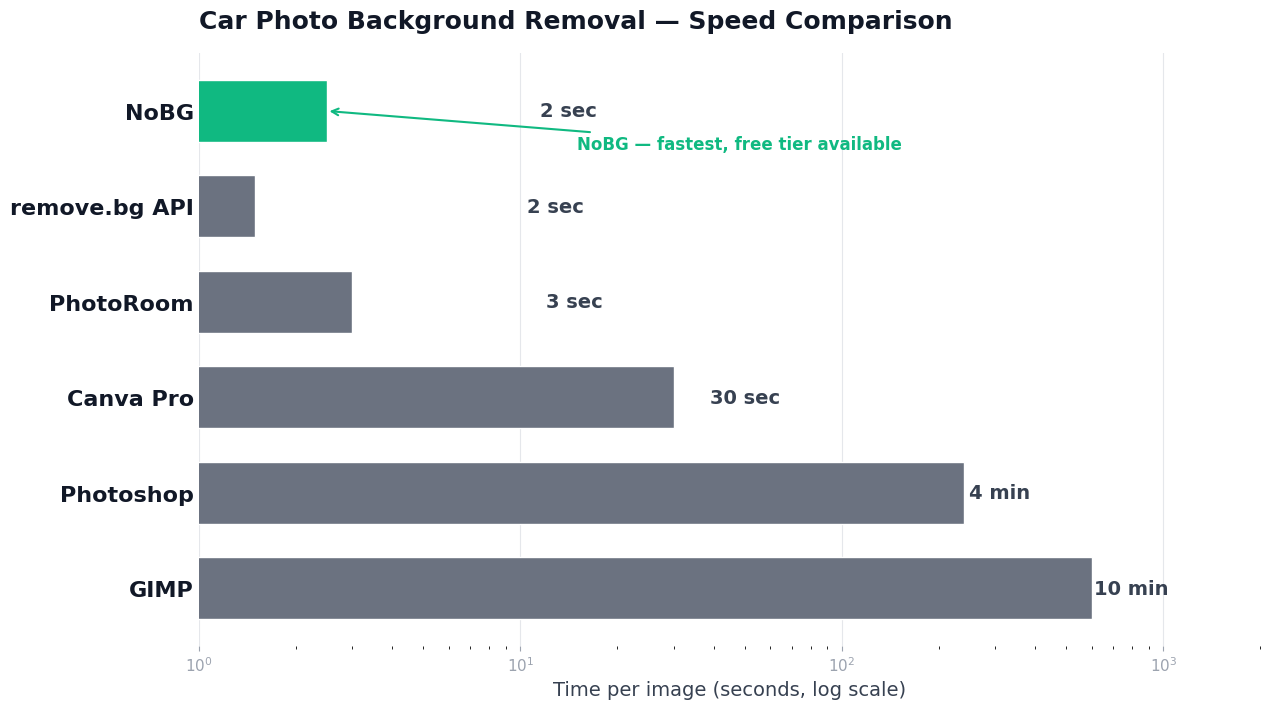
Quick Comparison
| Method | Speed | Cost | Best For | Max Per Batch |
|---|---|---|---|---|
| NoBG Online AI Tool | ⚡ 2–3 sec/image | $0–$24.90/mo | Dealers, private sellers, anyone | 500/month |
| Adobe Photoshop | 🐢 3–5 min/image | $22.99/mo | Designers with CC subscription | Unlimited |
| remove.bg API | ⚡ 1–2 sec/image | $0.03–$0.20/image | Developers, CRM integration | Unlimited |
| PhotoRoom Mobile | ⚡ 2–4 sec/image | $9.99/mo | On-lot shoot-and-edit | 200/month |
| Canva Pro | 🐢 30 sec/image | $12.99/mo | Marketing teams | 500/month |
| GIMP / Photopea | 🐢 5–15 min/image | Free | Hobbyist sellers | Unlimited |
Method 1: NoBG Online AI Tool — Fastest, Best for Dealers
The quickest way to remove a background from a car photo is an AI tool built for the job. NoBG detects vehicles, chrome trim, license plates, and wheels as a single object and cuts them out cleanly from whatever backdrop was behind them.
Try NoBG free for car photos →
Step-by-step:
- Go to NoBG’s car photo background remover and drag in your vehicle photo
- The AI detects the car automatically — including chrome, windows, wheels, and reflections
- Click “Remove Background” and the AI cuts the car out in 2–3 seconds
- Choose your output background: transparent PNG, pure white #FFFFFF, or a neutral light gray
- Export as PNG (transparent) or JPEG (white background) and upload to your listing platform
Listing platform specs (verified 2026):
| Platform | Min Size | Max File | Format |
|---|---|---|---|
| Autotrader | 640 × 480 px | 8 MB | JPEG or PNG |
| CarGurus | 800 px width | 5 MB | JPEG or PNG |
| Cars.com | 800 × 600 px | 4 MB | JPEG or PNG |
| Facebook Marketplace | 720 px width | 30 MB | JPEG or PNG |
For most dealers, a single transparent PNG at original resolution works best — you can resize and reformat it to match each platform’s specs in one click. If you’re listing the same car across Autotrader and CarGurus, NoBG’s batch processing handles 500 vehicles per month on the Pro plan ($24.90/month).
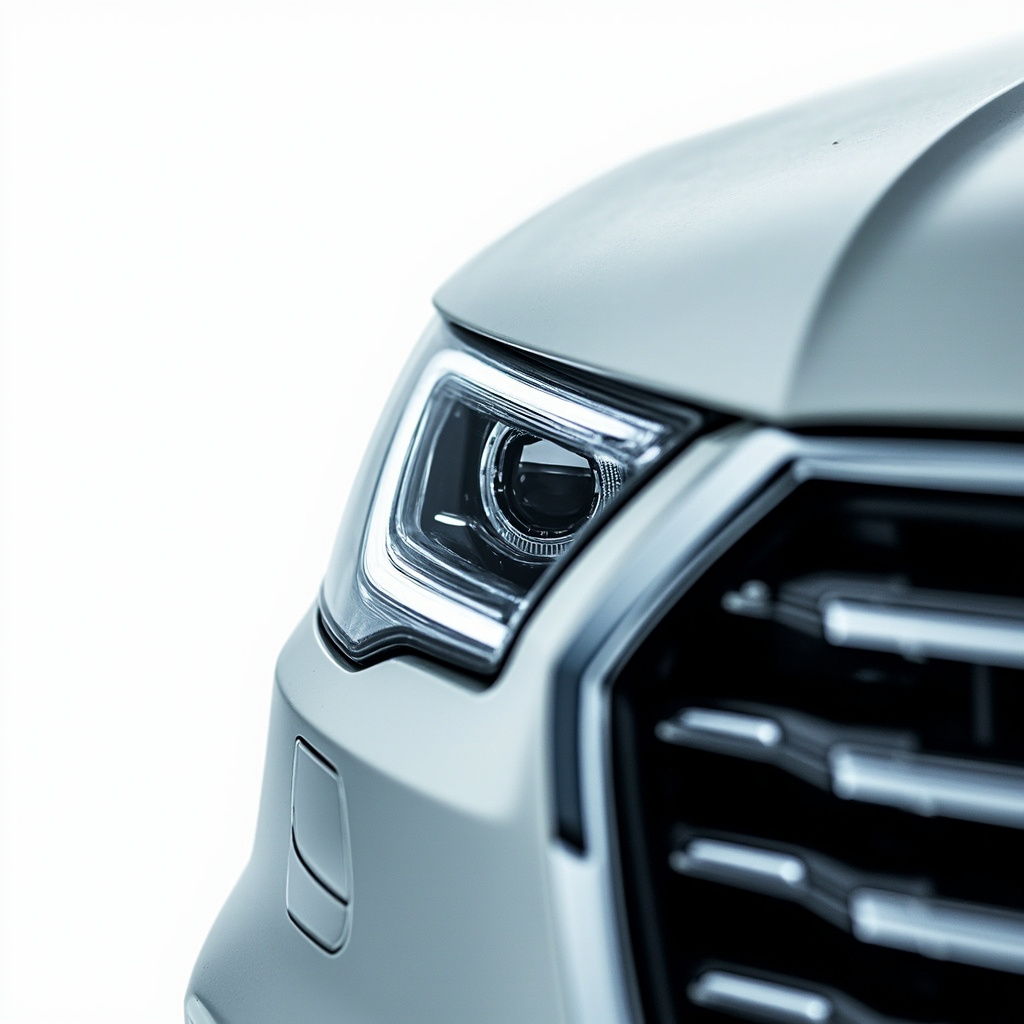
Pros: Handles chrome trim and reflections cleanly. Free tier gives you 2 removals per day. Works on any device with a browser. Pair with the NoBG white background option for Amazon-style pure white listings, or keep the transparent background for overlay marketing materials.
Cons: Requires internet connection. Free tier is 2/day — heavy dealers will need Pro at $24.90/month for 500 images/month.
The technique for clean pure white backgrounds is the same one we cover in our Amazon product photo guide — if you’ve used it for ecommerce, you’ll recognize the same showroom-style white background effect that makes products pop on a page.
Method 2: Adobe Photoshop — For Studio Shots
Photoshop’s “Select Subject” feature has improved enough to handle cars, but you’ll still spend 3–5 minutes per image dialing in edges around chrome trim and wheels.
Step-by-step:
- Open the car photo in Photoshop
- Go to Select → Subject (Photoshop analyzes the image and creates a selection around the car)
- Open Select → Mask and refine the edge with the Refine Edge brush — focus on chrome trim and wheel spokes
- Invert the selection (Ctrl/Cmd+Shift+I) and click Add Layer Mask to hide the background
- Add a white background layer behind the car if your listing platform needs pure white
Pros: Pixel-perfect control. Works offline. Already included in Creative Cloud if you have it.
Cons: 3–5 minutes per image. Photoshop subscription is $22.99/month. Setup takes practice — beginners often leave halos around chrome trim.
Photoshop makes sense if you’re a studio photographer with existing Creative Cloud access and you shoot fewer than 20 vehicles per week. For higher volume, the time cost stacks up fast.
Pro tip: Save your car cutout as a Photoshop action so the next car only takes 90 seconds. Record Select Subject → Refine Edge → Add Layer Mask → Save as PNG once, then batch-apply the action to a folder of vehicle photos using File → Automate → Batch. You still get the per-image 90-second refinement, but you skip the setup every time.
Method 3: remove.bg API — For Dealership Software Integration
If you’re building a dealership management platform, inventory import tool, or listing automation pipeline, the remove.bg API removes backgrounds from car photos programmatically.
Step-by-step setup:
import requests
import os

API_KEY = "your_api_key"
input_folder = "./vehicle_photos"
output_folder = "./transparent_vehicles"

for filename in os.listdir(input_folder):
    filepath = os.path.join(input_folder, filename)
    with open(filepath, "rb") as img:
        response = requests.post(
            "https://api.remove.bg/v1.0/removebg",
            files={"image_file": img},
            data={"size": "auto", "type": "car"},
            headers={"X-Api-Key": API_KEY}
        )
        if response.status_code == 200:
            output_path = os.path.join(output_folder, filename.replace(".jpg", ".png"))
            with open(output_path, "wb") as out:
                out.write(response.content)

print(f"Processed {len(os.listdir(input_folder))} vehicle photos")
Pricing: Free tier: 50 API calls per month. Paid: $0.03/image (preview) to $0.20/image (HD quality). Credits are pay-as-you-go.
Pros: Integrates into any workflow (Python, Node.js, cURL). Fast processing at 1–2 seconds per image. Consistent results.
Cons: Requires developer time to set up. API costs scale linearly with inventory. Each call depends on third-party uptime.
This is the right method if you’re a software developer building inventory management tools for dealer groups. For everyone else, the AI tools above are simpler and faster.
Pro tip: Use the type: car parameter to tell the API this is a vehicle image — it loads the automotive detection model that handles chrome trim and wheel spokes more accurately than the default person-and-product model. The HD output adds $0.17 per image but produces noticeably cleaner edges on reflective surfaces, which matters when the photo will appear on a 1600px-wide listing card.
Method 4: PhotoRoom Mobile App — For On-Lot Shooting
PhotoRoom is a mobile-first app designed for product and vehicle photo editing. It’s particularly useful when you’re walking the lot with your phone and want to shoot + remove background in one tap.
Step-by-step:
- Install PhotoRoom from the App Store or Google Play
- Open the app and tap the camera icon — snap the vehicle photo from your phone
- The AI removes the background instantly
- Tap “Background” and choose transparent, white, or a custom color
- Export to your camera roll or share directly to social
Pros: Shoot + edit in one tap. iOS and Android. Templates for Facebook Marketplace, Instagram, and dealer website banners.
Cons: $9.99/month Pro plan for unlimited removals. No batch processing from desktop. Less control over edge refinement than Photoshop.
PhotoRoom is ideal for solo dealers and private sellers who photograph cars on the lot and want a quick path to a listing-ready photo without ever touching a desktop.
Pro tip: Turn on the “Auto color correction” toggle after background removal — PhotoRoom adjusts exposure and white balance to match the new background, which is critical when you swap a busy outdoor shot onto pure white. The result looks studio-lit even when the original was a phone snap in uneven daylight.
Method 5: Canva Pro — For Marketing Teams
If your dealership has a marketing team that already uses Canva for social posts and email campaigns, Canva Pro includes a background remover that works on vehicle photos.
Step-by-step:
- Open Canva and create a new design (Instagram post, Facebook ad, or banner)
- Upload the car photo to your design
- Click the image → “Edit Image” → “BG Remover”
- Choose a background color or add a branded backdrop
- Download the design as PNG or post directly to social
Pros: Familiar interface for marketing teams. Includes design templates for every channel. Good for creating social campaigns around vehicles.
Cons: $12.99/month for the BG Remover feature. Each car requires individual clicks — no true batch processing for 50-vehicle inventories. Less precise on chrome trim than dedicated car-photo tools.
Canva Pro makes sense for the marketing team, not the inventory manager. Use it for the 5–10 hero vehicles you feature in monthly campaigns, not the full inventory.
Pro tip: After background removal, drop the car onto a Canva “Showroom” template — these include branded backdrops, price tag overlays, and feature callout boxes designed for Facebook Marketplace and Instagram. The result is a listing-ready social post in under 2 minutes per vehicle, which is the fastest path from photo to live ad in the Canva ecosystem.
Method 6: GIMP / Photopea — Free Manual Edit
If you want to remove a background without paying anything, GIMP (desktop) and Photopea (browser) both let you manually select and erase the background.
Step-by-step (Photopea, browser-based):
- Open Photopea.com and load your car photo
- Use the Magic Wand or Fuzzy Select tool to click on the background
- Go to Select → Grow (10–20 pixels) to expand the selection to include edge halos
- Select → Feather (2–5 pixels) to soften the edge
- Press Delete to remove the background
- Add a white background layer behind the car
- Export as PNG
Pros: 100% free. Works offline with GIMP. Photopea runs in any browser. No recurring costs.
Cons: 5–15 minutes per image. Manual selection struggles with chrome trim — you’ll see halos around reflective surfaces. No batch processing.
This is a reasonable choice if you’re a hobbyist seller listing one or two cars per year and want zero software cost. For anything beyond that, the AI tools save hours of manual work for a few dollars per month.
Pro tip: Save your selection settings as a GIMP script-fu macro so the second and third cars take half the time. The Fuzzy Select + Grow + Feather + Delete sequence is the same every time — recording it once means you re-run the macro on the next photo with one shortcut key instead of clicking through every menu.
Use Cases for Background-Free Car Photos
Online listings on Autotrader, CarGurus, and Cars.com. Buyers scroll fast. A clean photo with no background clutter makes your vehicle stand out in the search results and gets more clicks than a busy dealership-lot shot. Most successful dealers shoot in natural light wherever they can, then fix the background in post.
Dealer website inventory pages. Consistency matters when you’re showing 50 vehicles on one page. Removing the original background and applying a uniform white or neutral gray across the entire catalog creates a professional, branded look. The same batch process used for ecommerce catalogs works on vehicles.
Social media advertising. Facebook Marketplace, Instagram, and TikTok ads use vehicle photos overlaid on branded backgrounds. A transparent PNG of the car lets you drop it onto any backdrop — a sale banner, a financing promotion, a seasonal campaign.
Print catalogs and brochures. Dealerships still produce printed materials for special sales events. Transparent PNGs let designers place vehicles on any layout without compression artifacts around the edges.
Marketing collateral. A vehicle cutout on a brochure cover or a banner ad looks more polished than a screenshot with a busy background. The same approach used for transparent product cutouts applies directly to cars.
Which Method Should You Choose?
Choose Method 1 (NoBG) if you want the fastest, easiest path. Works on any device, handles chrome trim cleanly, and has a free tier for occasional use. Best for dealers with 10+ vehicles per week who don’t want to learn Photoshop. Try NoBG free →
Choose Method 2 (Photoshop) if you already pay for Creative Cloud and you shoot fewer than 20 vehicles per week. The 3–5 minutes per image is fine at that volume.
Choose Method 3 (remove.bg API) if you’re a developer building dealer software. For inventory automation at scale, an API is the only practical approach.
Choose Method 4 (PhotoRoom) if you want to shoot + edit from your phone in one tap. Best for solo dealers walking the lot. For the same workflow on a desktop browser, NoBG batch processing is a faster alternative.
Choose Method 5 (Canva Pro) if your marketing team already uses Canva for campaigns. Use it for the 5–10 hero vehicles you feature, not the full inventory.
Choose Method 6 (GIMP / Photopea) if you want zero cost and you’re processing 1–2 vehicles per year. The manual time investment is steep but the price is right.
Common Mistakes When Removing Car Photo Backgrounds
Over-refining chrome trim. Chrome reflects whatever’s around it, including the background you just removed. If you spend 10 minutes cleaning up every reflection in Photoshop, the car ends up looking unrealistic. AI tools preserve reflections naturally — that’s what makes the result look real.
Choosing pure white when the platform allows neutral gray. Amazon requires pure white. Autotrader, CarGurus, and Cars.com don’t. A neutral light gray (#F5F5F5) reduces eye strain and looks more like a real dealership lot. Save white for marketplace-compliance contexts.
Not resizing to platform specs before upload. Autotrader accepts up to 8MB but warns that large files slow page loads. Resize to 1600px width before uploading — listings load faster and rank better in search results.
Skipping shadow removal. If you don’t remove the ground shadow when you remove the background, the car appears to float. AI tools detect and remove shadows automatically. In Photoshop, you have to mask them out manually.
Leaving the license plate visible. Some states have privacy laws about license plates in marketing materials. Most listing platforms are fine with visible plates, but for ads and printed brochures, blur the plate before publishing.
Uploading the original size. A 6000×4000 pixel photo from your phone is overkill for a 640×480 listing image. Resize before uploading to speed up your listing page and avoid hitting platform file size limits.
Frequently Asked Questions
What size car photo is best for online listings?
Autotrader accepts JPEG or PNG at least 640×480 pixels and up to 8MB. CarGurus prefers 800px minimum width so the photo fills the listing card. Cars.com recommends 800×600 or larger. For best results across all platforms, shoot at 2000×1333 pixels and let NoBG resize the cutout to whatever each platform needs. Higher resolution source images produce cleaner AI cutouts at every output size.
Should I remove the background from car photos?
It depends on your listing platform. Autotrader, CarGurus, and Cars.com don’t require background removal, but a clean or neutral background makes your car stand out in search results. Busy dealership lots, alleyways, or messy driveways distract buyers and reduce click-through rates. If you can’t shoot on a neutral backdrop, removing the background and replacing it with white or light gray is the fastest way to lift your listing above competitors.
What aspect ratio works for car listing photos?
A 3:2 ratio (landscape) works best for car listings because it matches most camera sensors and the listing card display shape. For vertical social posts, 4:5 also performs well. Avoid square crops — they cut off the wheels and either end of the vehicle. NoBG preserves your original aspect ratio when removing the background, so shoot in the ratio you want to display.
Can I use a phone photo after removing the background?
Yes — modern iPhone and Android cameras (12MP+) produce photos sharp enough for online listings after AI background removal. The key is lighting and angle. Shoot during golden hour or overcast days for even lighting, park the car away from busy backgrounds, and capture the standard 3/4 front angle. Phone photos taken in good light produce AI cutouts as clean as DSLR photos. NoBG accepts JPG and PNG up to 20MB, which covers any phone camera output.
Do I need to add a new background after removing it?
You can keep the background transparent (PNG format), add pure white (#FFFFFF) for marketplace compliance, or add a neutral light gray for a softer look. Transparent works if you’re overlaying the vehicle onto a designed background in marketing materials. White works for Amazon-style product listings or dealer catalogs. NoBG lets you pick any of these options after removing the original background — no second tool needed.
How long does it take to remove the background from a car photo?
With NoBG, the AI processes each car photo in 2–3 seconds. A batch of 50 inventory photos finishes in under 5 minutes. Photoshop takes 3–5 minutes per image depending on chrome trim complexity. Manual tools like GIMP run 5–15 minutes per image. remove.bg API processes each photo in 1–2 seconds but requires custom coding. For dealers with 50+ vehicles per week, AI tools save 10+ hours per inventory cycle.
Does NoBG handle car photos with reflections?
Yes. NoBG’s AI is trained on automotive imagery and detects chrome trim, license plates, window reflections, and wheels as part of the vehicle — not the background. The model preserves reflective surfaces while cleanly separating the car from whatever busy backdrop it was shot on. If the AI misses a small detail, NoBG’s manual refinement tool lets you brush over the edge in 5–10 seconds before exporting.
Remove your first car photo background in seconds →
Ready to process a full inventory? Batch process 50+ vehicle photos →
Related guides
- How to remove image background online — general background removal walkthrough
- Remove background on iPhone — mobile workflow for photos on the go
- Change background color of any image — swap to white, gray, or custom colors